All guidesStart here
Sign in for the first time
Get into your workspace, and know which of the two buttons on this screen is yours.
- Steps
- 4 · About 3 min
- Who can do this
- Owner · Manager · Accountant · Team member · Read only
Two buttons, and picking the wrong one is the commonest first-day confusion. One creates a brand-new business in Horizon213; the other lets you into an existing one.
Enter your details
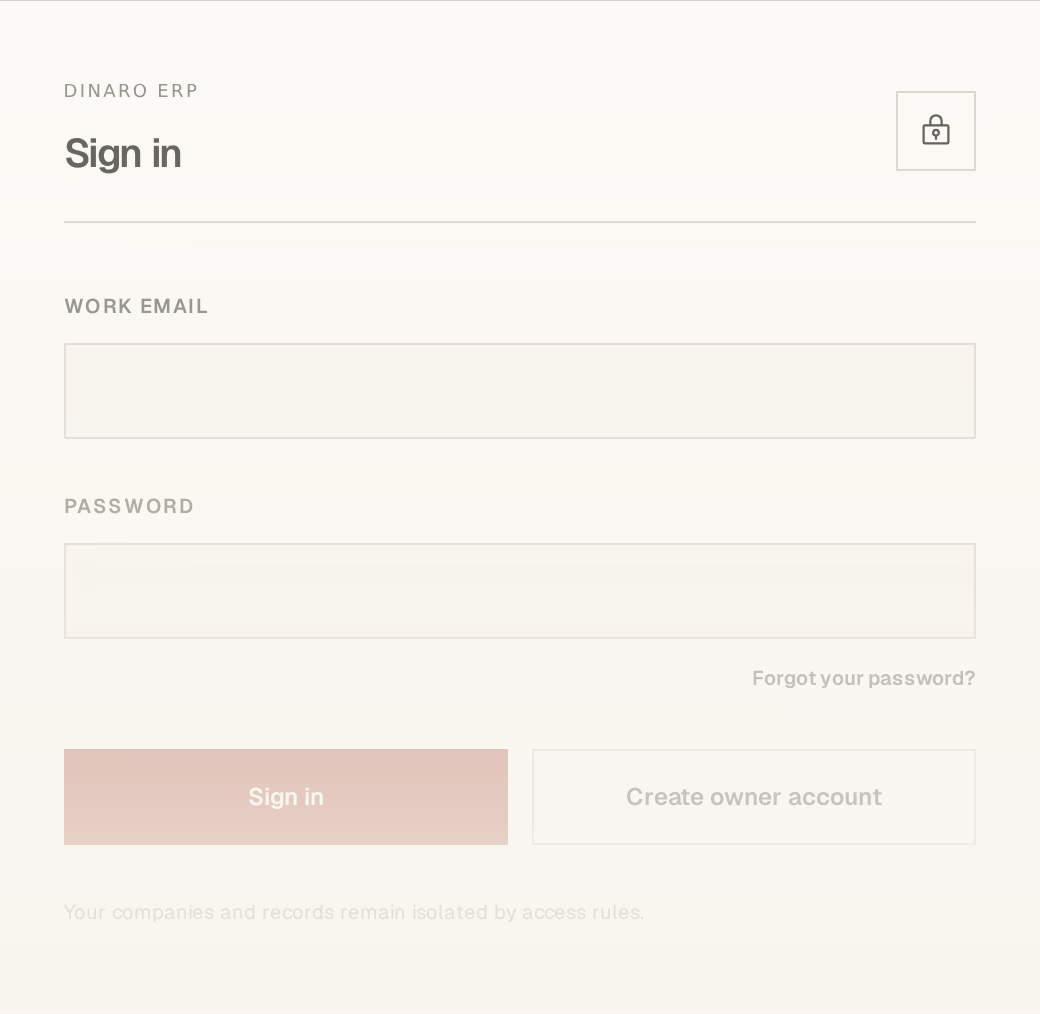
What to look at:
Work email — the address your workspace knows you by. If somebody invited you, it is the exact address they sent the invitation to; a different one will not work, because the invitation is bound to it.
Password — yours, chosen by you. Nobody at your company can see it, and nobody here can tell you what it is.
Sign in — if you already have an account, or were invited.
Create owner account — only if you are setting up a business in Horizon213 for the first time and nobody has invited you.
Which button is yours
You were sent an invitation link. Open that link rather than this screen. It walks you through setting a password and lands you in the right workspace with the right access. Coming here first and creating an account gets you a different, empty workspace with nothing in it.
You are the first person at your business. Create owner account. You will then be walked through creating the workspace and the first company.
You have signed in before. Sign in.
Creating an owner account when you meant to accept an invitation is the single most common way to end up in an empty Horizon213 wondering where the data is. The data is not missing — you are in a workspace of your own. Go back to the invitation link and use that instead.
If the password is gone
Forgot your password? sends a reset link to your work email. Follow it, choose a new password, and sign in again.
Nobody can reset it for you from inside the ERP — not your manager, not the owner. That is deliberate: an account belongs to the person who holds it, and an administrator who could take over a colleague's login would break the audit trail that says who did what.
Where you land
Straight into the workspace, on the dashboard of the company you have access to. If you can reach more than one, the sidebar names the one you are in, and lets you switch.
Signing out is at the bottom of the sidebar. It signs out this device only — useful on a shared computer at the counter, and it does not disturb anyone else who is working.