All guidesHorizon213 AI
Turn on Horizon213 AI
Connect your own provider, decide who chooses the model, and understand what the assistant can and cannot do.
- Steps
- 4 · About 3 min
- Who can do this
- Owner · Manager
AI is off until you turn it on, and it runs on your own provider account. Nothing is sent anywhere until you connect one, and there is no shared service behind it — the key is yours, the account is yours, and the bill is yours.
That is the design, and it is why this screen exists at all. Settings, section 05.
Decide the policy
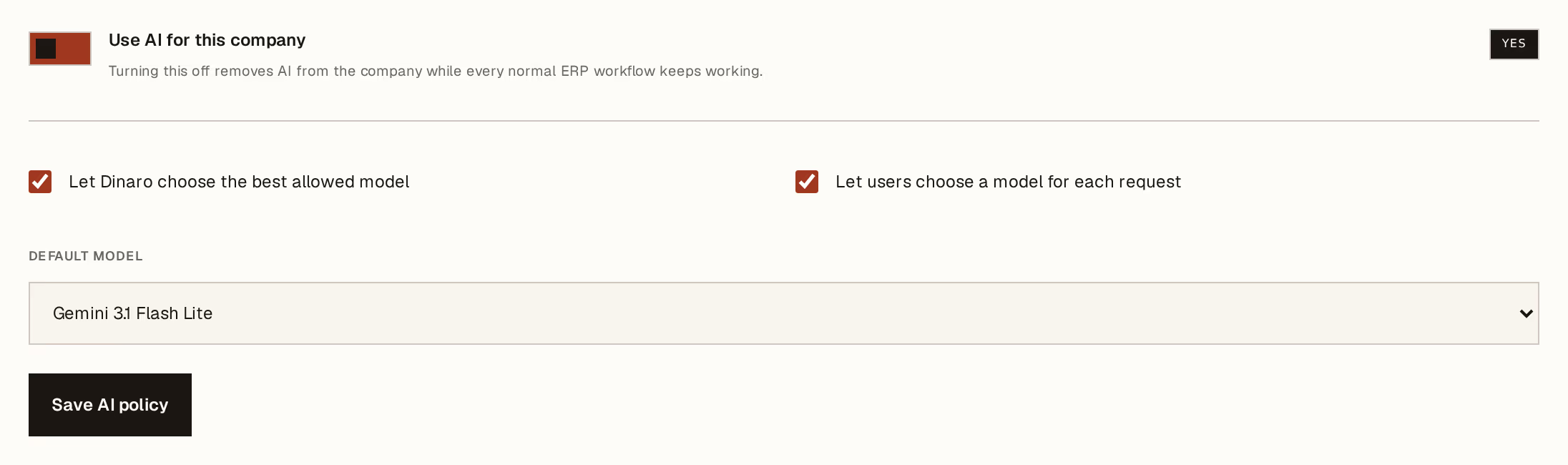
What to look at:
Use AI for this company — the master switch. Turning it off removes the assistant from the company while every normal ERP workflow keeps working. Nothing depends on it, which is the honest position: the AI is an assistant, not a component.
Let Horizon213 choose the best allowed model — routes each request to a suitable model on its own. Leave it on unless you have a reason.
Let users choose a model for each request — lets the person asking override. Turn it off if you want one predictable model and one predictable cost.
Default model underneath is what gets used when nobody chooses. Press Save AI policy.
Connect a provider
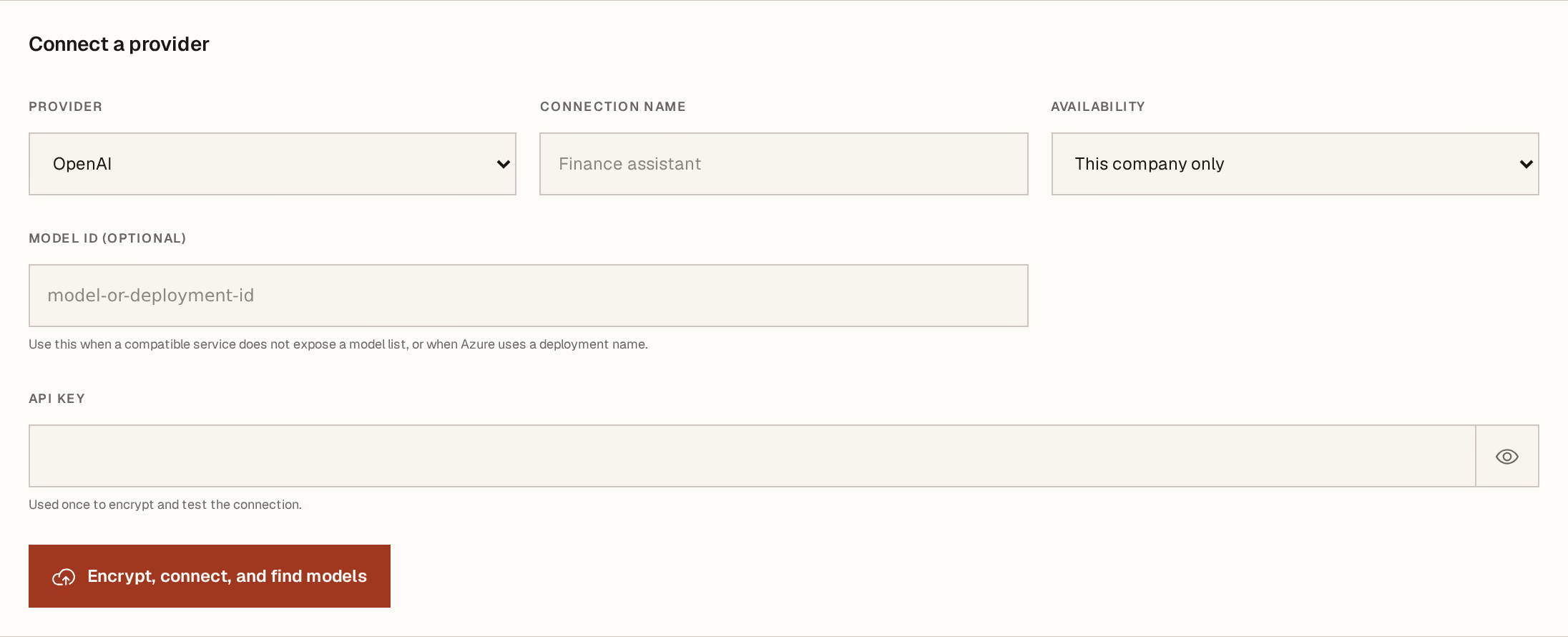
What to look at:
Provider — who you have an account with. The model ID field below is for a service that does not publish a model list, or an Azure deployment name; leave it empty otherwise.
Availability — this company only, or the whole group. Scope it to the company unless the group genuinely shares one account.
API key — pasted once. It is encrypted immediately, tested, and never shown again — which is why the button says encrypt, connect, and find models: it stores the key, proves it works, and asks the provider what it can run, in one press.
A connection name helps only you, later, when there are two.
What it can and cannot do
It can read your data and answer from it — what a customer owes, what is low on stock — and it can find and quote these guides when you ask how to do something.
It cannot act. It does not confirm invoices, post payments, or change records. Ask it to do something and it explains the steps rather than taking them. That boundary is deliberate: an assistant that can write is an assistant whose mistakes you find later.
It also only sees what you are allowed to see. Module gating and your role apply to the assistant exactly as they apply to the screens — who can do what covers that.
If you would rather not
Leave it off. Every register, document, report and total in this product works without it, and nothing in these guides requires it.
The one thing you lose is the ability to ask questions in your own words — useful, and not load-bearing.
The API key is a credential for an account you pay for. Anyone who can reach these settings can replace it, so treat the manager role for this company as the boundary that protects it. The key itself cannot be read back out of Horizon213 once saved, by anybody, including you.
Next, you might want to
- Ask Horizon213 AI about your own figuresPut a question in your own words and get an answer built from your records, with the documents it used.
- Who can do whatThe four levels of access, what each one really means, and why read-only is a wall rather than a hidden button.
- Turn modules on and offShow only the parts of Horizon213 this company actually uses, and hide the rest from everyone's screen.