All guidesCounter sale
Close the till and count the drawer
End the day by counting the cash and comparing it against what the register expected.
- Steps
- 3 · About 2 min
- Who can do this
- Owner · Manager · Team member
- Needs the module
- Counter sale
Before you start
Closing the till is the point of the till. Everything before it is selling; this is the moment you find out whether the cash in the drawer matches the sales the register recorded.
Do it at the end of every day, before the money leaves the shop. A drawer counted the next morning cannot be reconciled by anyone.
Read what the register expects
The session panel shows the day as the system saw it: sales today, takings, and Expected in drawer — the opening float plus every cash sale, less nothing else.
Do not read that number before you count. Count first, then compare; otherwise the number you were shown becomes the number you find.
Count the cash and close
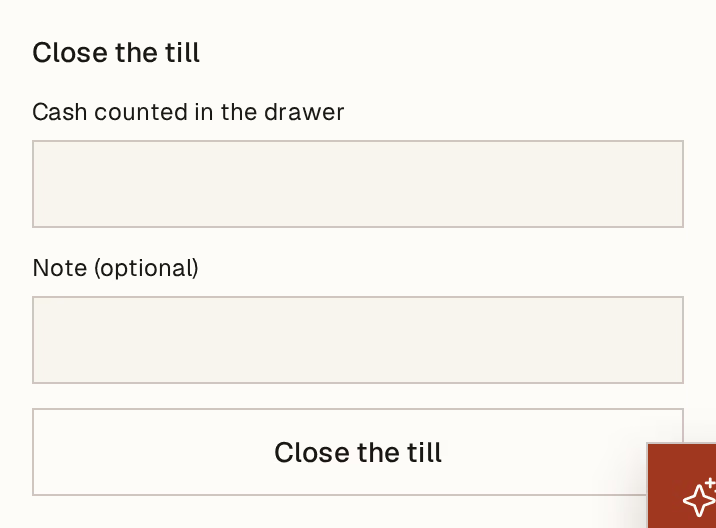
What to look at:
Cash counted in the drawer — the real total, including the float you started with. Count notes and coins, not the card and cheque takings: those never entered the drawer.
Note — where an explanation belongs. A shortfall with a reason written the same evening is a manageable thing; the same shortfall found three weeks later is not.
Close the till ends the session.
Read the difference
The result names it plainly: Expected, what you counted, and the Difference — short if there is less than there should be, over if there is more, or "The drawer matches." when it is exact.
Both directions matter. Being over is not good news; it usually means a sale was taken but not rung up, which means the stock figure is now wrong too.
The session is closed and cannot be reopened. Tomorrow starts with opening the till and counting the float again.
Counter sales are ordinary invoices, so nothing here is a special kind of record. The day's sales appear in the Sales register, in your VAT, and in the cashbook exactly as any other sale would.