All guidesCounter sale
Take a counter sale
Scan or search, take cash, card or cheque, give the change, and print the ticket.
- Steps
- 3 · About 2 min
- Who can do this
- Owner · Manager · Team member
- Needs the module
- Counter sale
Before you start
One basket, one press, one invoice. The till is built for a queue: the fewest possible taps between the customer putting something on the counter and walking out with a ticket.
Put the items in the basket
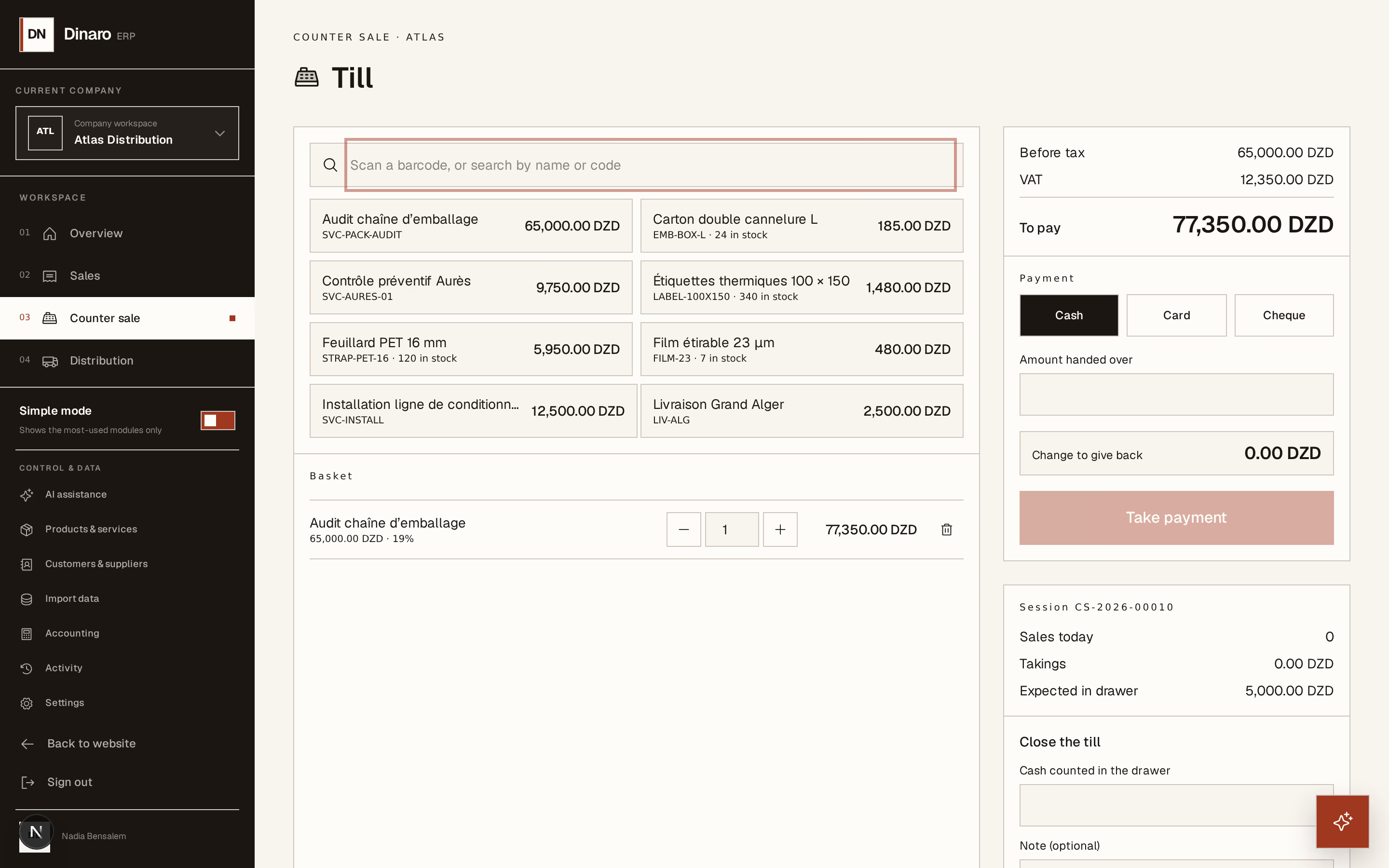
What to look at:
Scan a barcode, or search by name or code — a scanner types into this box like a keyboard, so scanning simply works. Typing a few letters of the name works too.
The product buttons — tap one to add it. Each shows what is on hand, so you can see before you sell whether the shelf agrees with the system.
Basket — what the customer is buying, with the total before tax, the VAT, and what there is to pay. Remove takes a line back out.
Press a product twice for two of it. If an item is set up in packs, one press is one pack — a carton is a single tap at the till.
Take the money
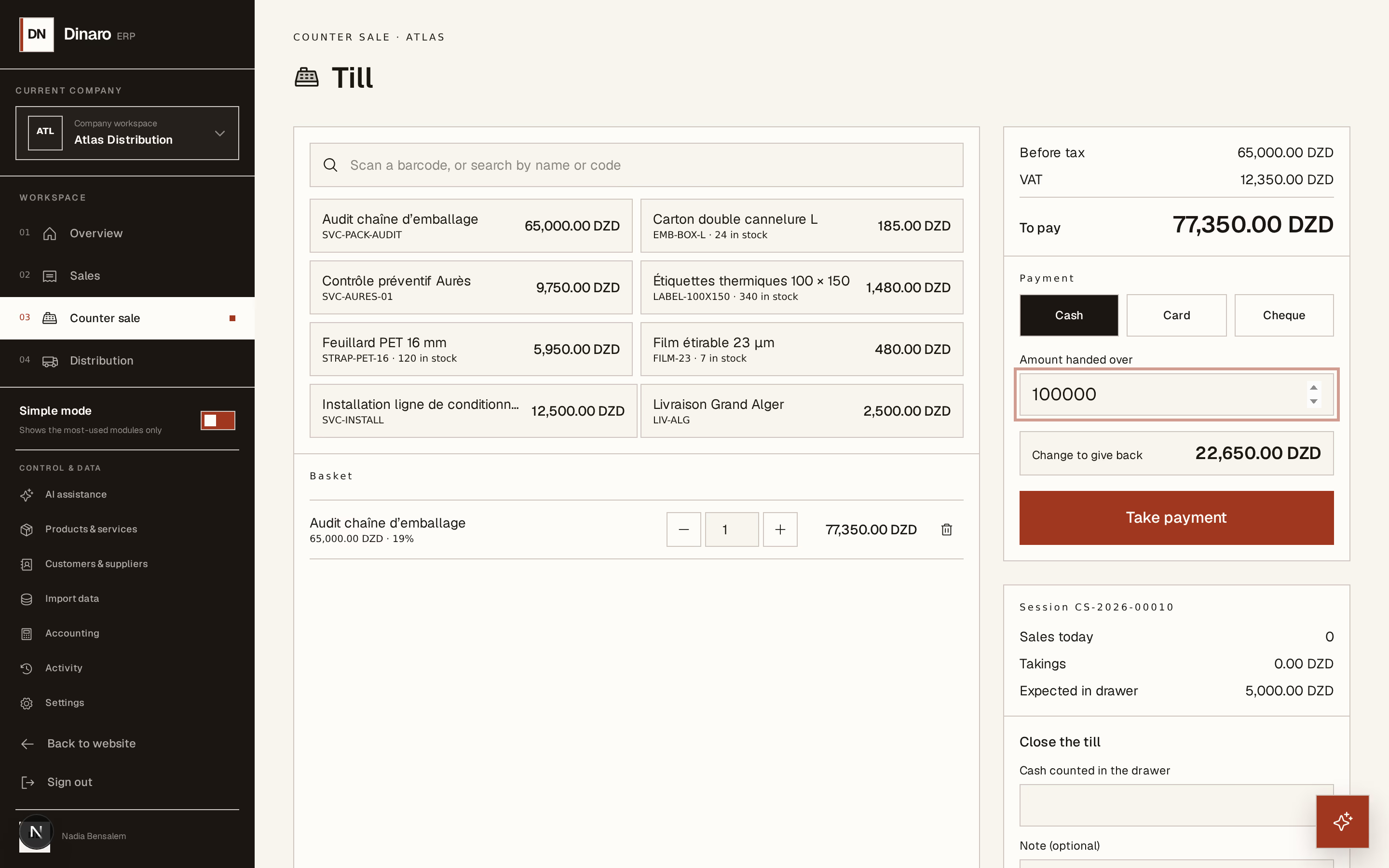
What to look at:
Amount handed over — type what the customer actually gives you and the screen shows the change to give back. This is for cash; card and cheque take the exact amount.
Take payment records the sale. It writes a real invoice, moves the stock, and posts the cash.
Choose Cash, Card, or Cheque above the amount first. The sale is confirmed straight away — there is no draft stage at the counter.
Print the ticket and move on
The screen confirms the sale with its invoice number. Print the ticket for the customer, Next sale for the person behind them.
If the connection drops, keep selling. Every basket is written to this device before it is sent, and the banner will tell you how many are still waiting. Press Send them now when the line is back. Re-sending is safe: each basket carries its own reference, so a sale cannot be recorded twice, and neither can a double-press on Take payment.