All guidesSell
Create and confirm a sales invoice
Bill a customer for goods or services, then confirm it so it counts in your books.
- Steps
- 6 · About 4 min
- Who can do this
- Owner · Manager · Team member
- Needs the module
- Sell
Before you start
An invoice is how you ask a customer to pay. In Horizon213 you write it as a draft first, check it, then confirm it. Only a confirmed invoice counts in your sales figures, carries tax into your VAT return, and appears in what you are owed.
A draft changes nothing and can be thrown away. Take your time over it.
Selling over a counter, one basket at a time? Use the till instead — it writes the same invoice for you in a single press.
Open the Sales register
Sales is the second entry in the sidebar, under Overview.
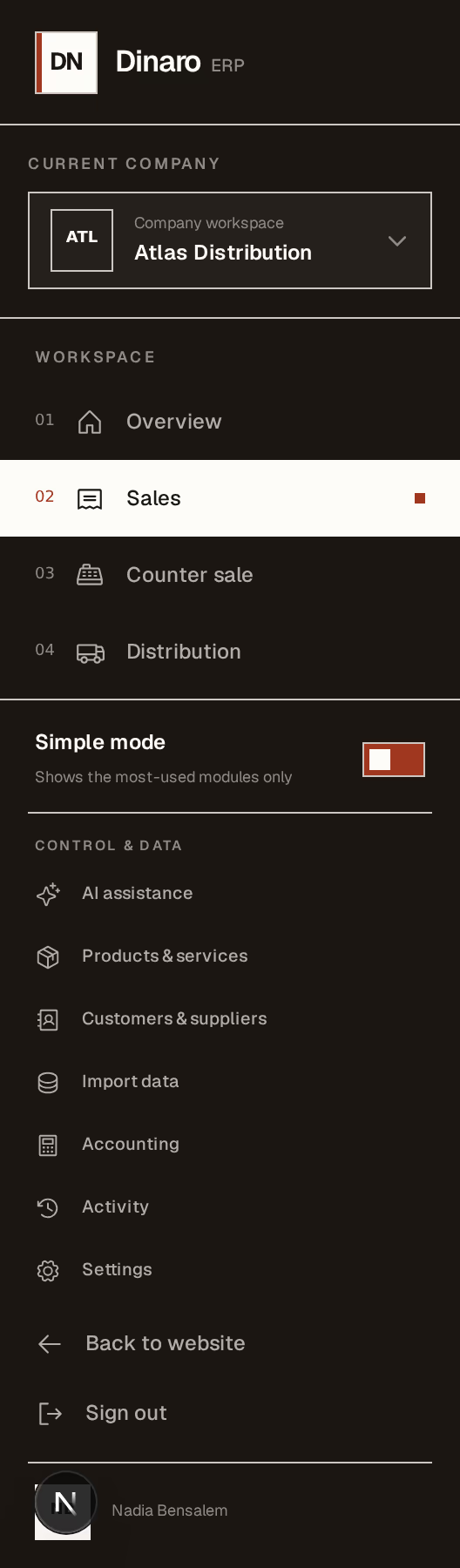
What to look at:
Sales takes you to the invoice register.
The company you are working in. Everything you create belongs to this company, so check it before you start.
Start a new invoice
The register lists every invoice you have written, newest first, with a row of links to everything that sits alongside them.
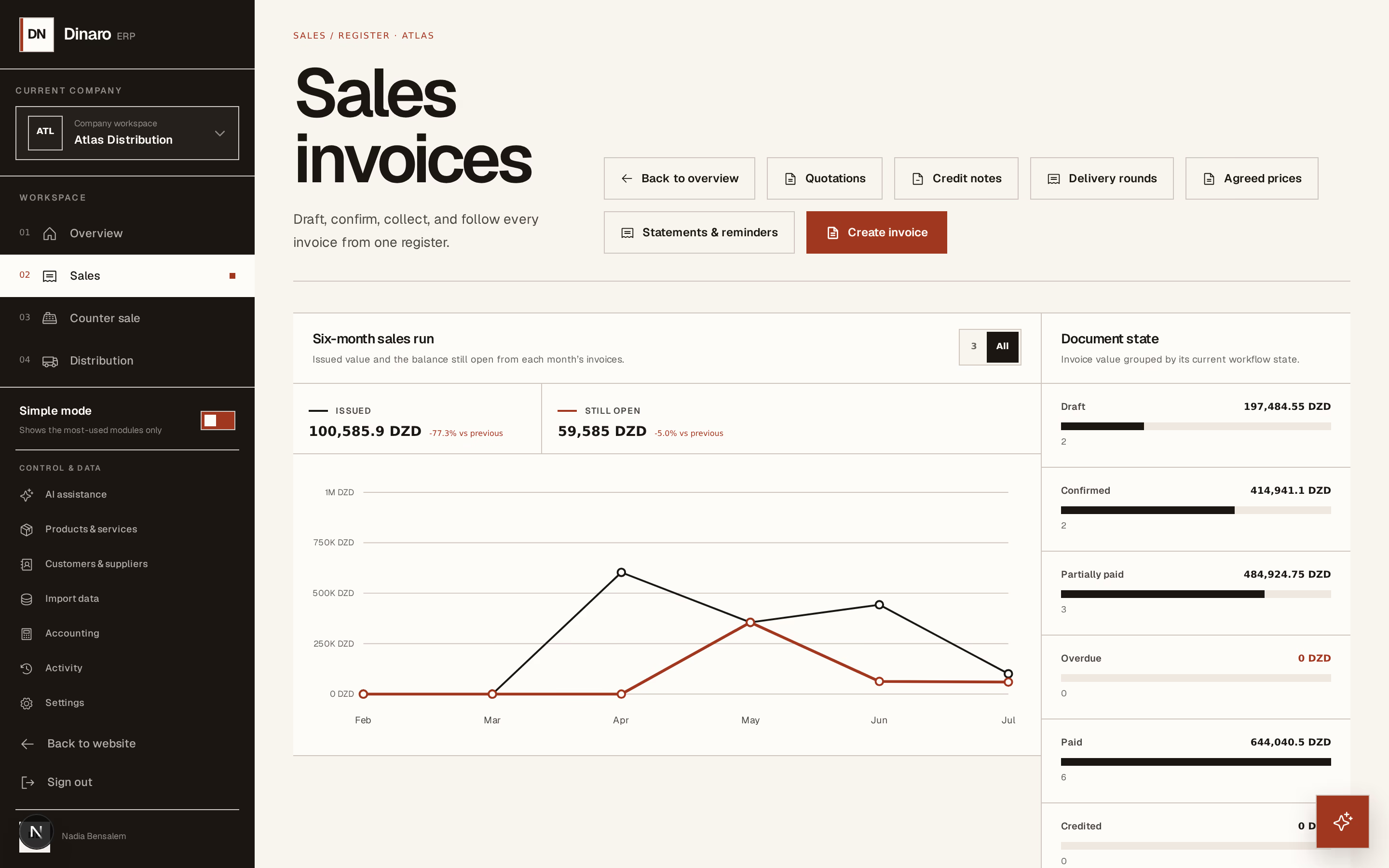
What to look at:
Create invoice opens a blank draft.
Quotations is where to start instead if the customer asked for a price first — an accepted quotation turns into an invoice without retyping it.
Choose the customer and the dates
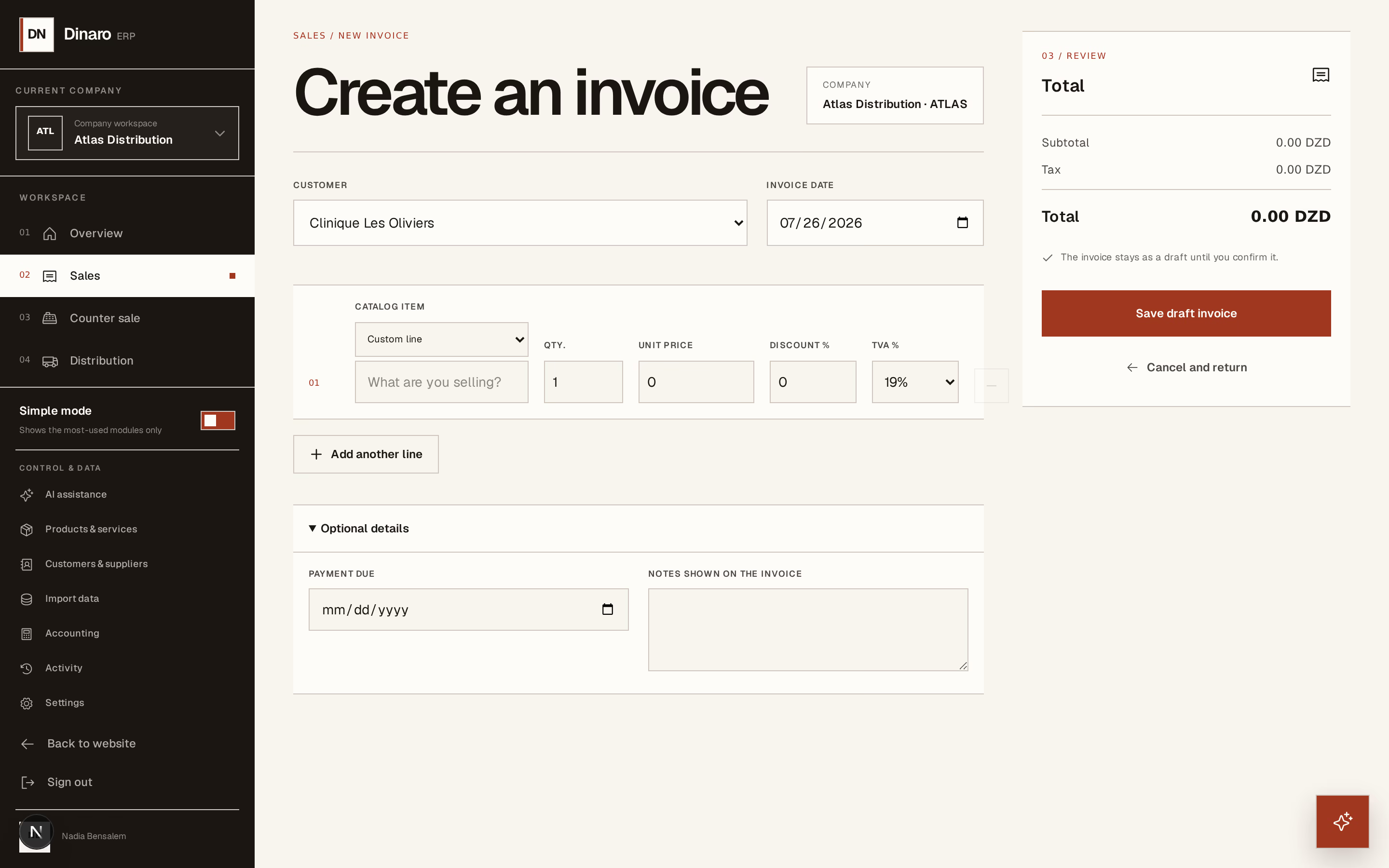
What to look at:
Customer — pick from the list. If they are not there yet, choose + Add a new customer; a name is enough to start, and the phone number and NIF can follow later.
Invoice date — the date the sale happened, not necessarily today. This decides which VAT period the invoice falls into.
Payment due — when you expect to be paid. It sits under Optional details, which is folded away until you open it. Horizon213 uses this date to work out what is late, so it is worth filling in.
The invoice date decides the VAT period. Once an invoice is confirmed the date cannot be edited — putting it right means a credit note and a fresh invoice. Get it right here.
Add what you are selling
Each line is one product or service.
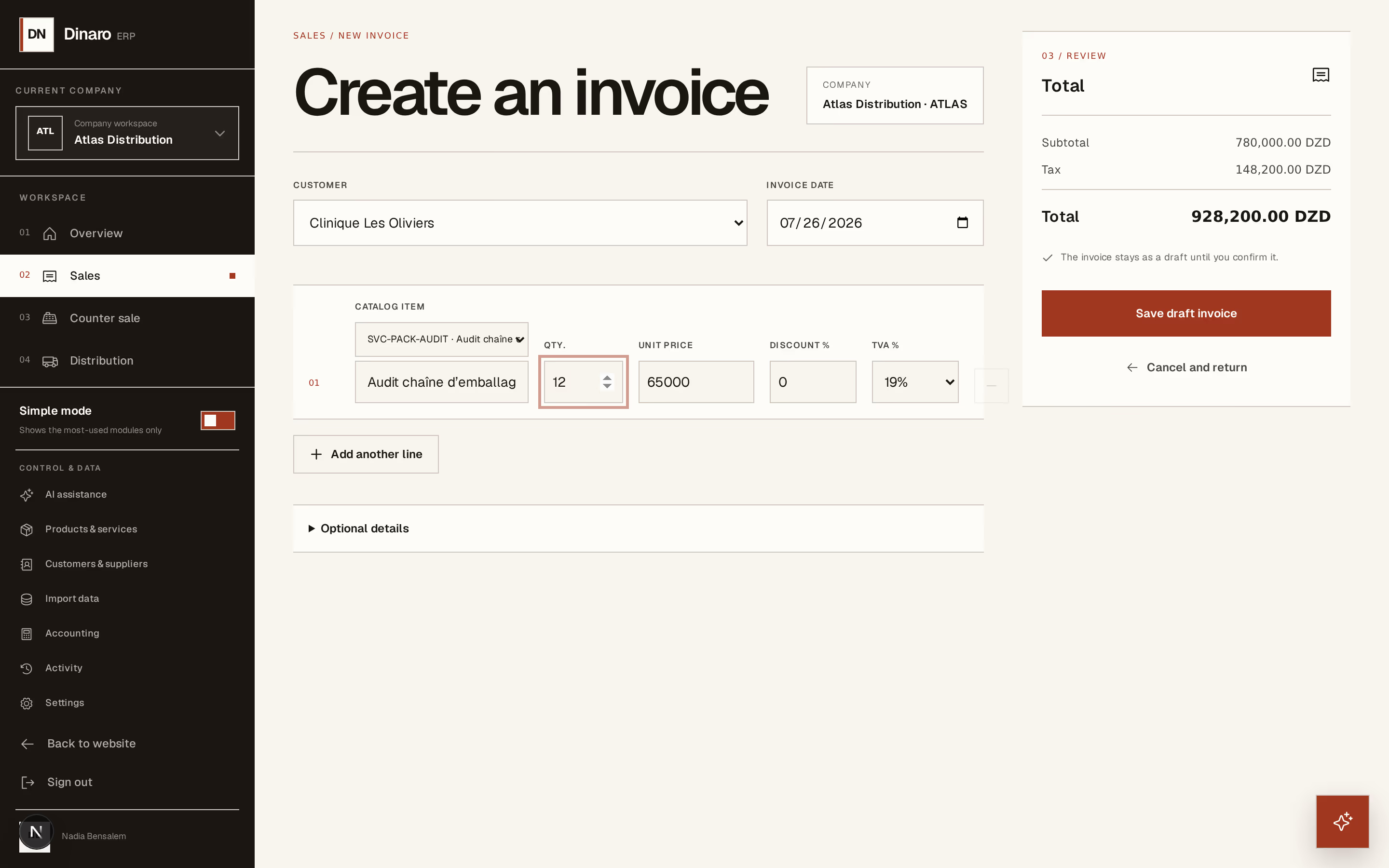
What to look at:
Catalog item — pick from your catalogue and the description, unit price and tax rate come across on their own. Leave it on Custom line for a one-off you do not want to add to the catalogue, and type the description in the box beside it.
Qty. — how many. If you set the item up in packs, this is the number of packs.
Unit price — filled in from the catalogue. If you have agreed a special price with this customer, Horizon213 applies it here and tells you so.
TVA % — comes from the item. Discount %, just before it, applies to this line only.
Press Add another line for the next item. Under Optional details there is also Notes shown on the invoice, for anything the customer needs to read: a purchase-order reference, delivery instructions, payment terms.
Check the total and save the draft
The Review panel adds up as you type.
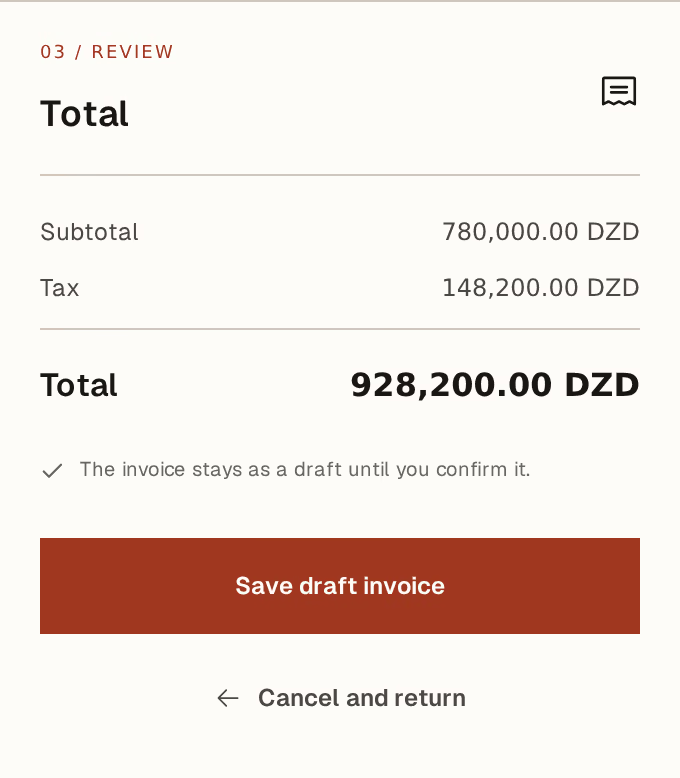
What to look at:
Subtotal, Tax and Total — the amount before tax, the VAT, and what the customer owes.
Save draft invoice stores it without committing to anything. Nothing has reached your accounts yet: no number, no stock movement, no debt.
Confirm the invoice
Saving takes you to the invoice's own page. Read it once more, then confirm.
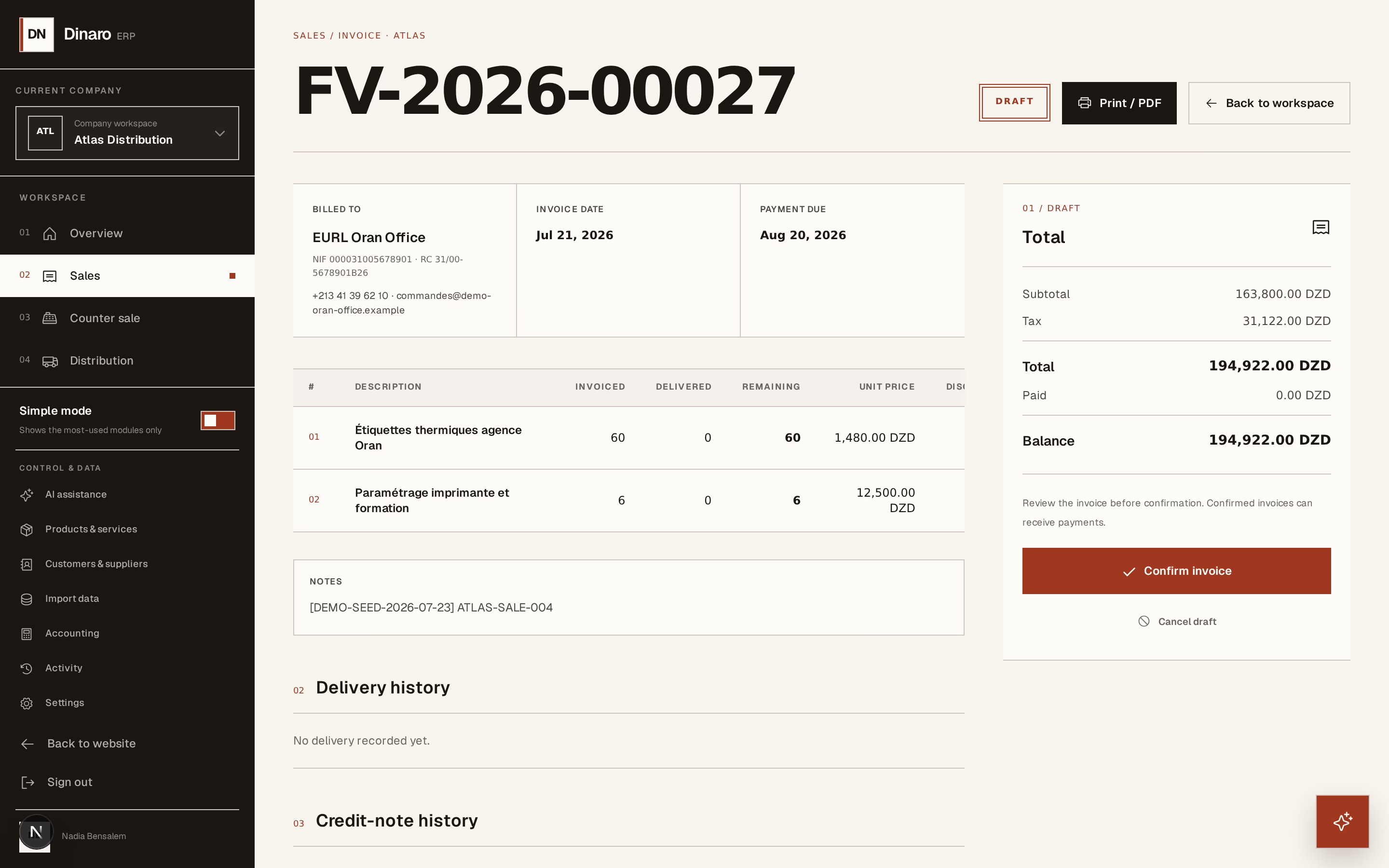
What to look at:
Confirm invoice gives the invoice its number, posts the sale and the VAT to your accounts, and adds the amount to what the customer owes you.
Cancel draft throws the draft away instead. Only a draft can be cancelled.
Print / PDF produces the A4 document to send or hand over.
From here you can record the payment when it arrives, record a delivery for the goods that leave, or issue a credit note if something has to be put right. A confirmed invoice is never edited — every correction is a new document with a trail behind it.
Next, you might want to
- Record a customer paymentEnter money received against an invoice, in full or in parts, so what you are owed stays true.
- Record a delivery against an invoiceRecord the goods that physically leave, in full or a part at a time, and move stock with them.
- Write a quotation and turn it into an invoiceGive a customer a price that holds until a date, then convert the accepted one without retyping it.