All guidesSell
Write a quotation and turn it into an invoice
Give a customer a price that holds until a date, then convert the accepted one without retyping it.
- Steps
- 5 · About 3 min
- Who can do this
- Owner · Manager · Team member
- Needs the module
- Sell
Before you start
A quotation is a price with an expiry date on it. It commits nothing: no VAT, no debt, no stock. Once the customer says yes, Horizon213 turns it into a draft invoice with the same lines, so nobody retypes anything and nobody mistypes a price.
Open Quotations
Quotations sit beside the invoice register, not in a separate module.
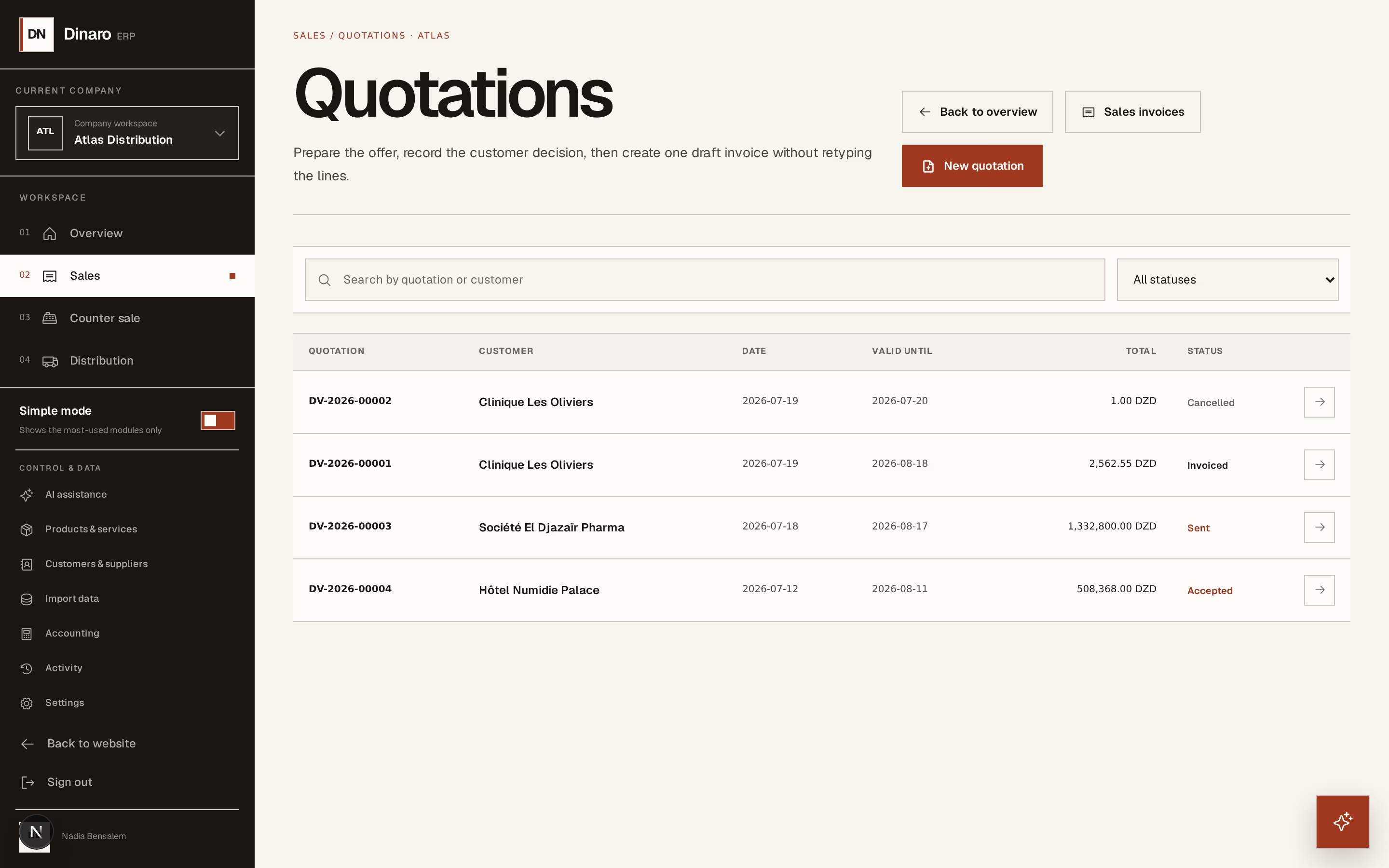
What to look at:
New quotation starts a blank one.
Sales goes back to the invoices. Quotations and invoices are two stages of the same job, which is why they share a screen.
Choose the customer and how long the price holds
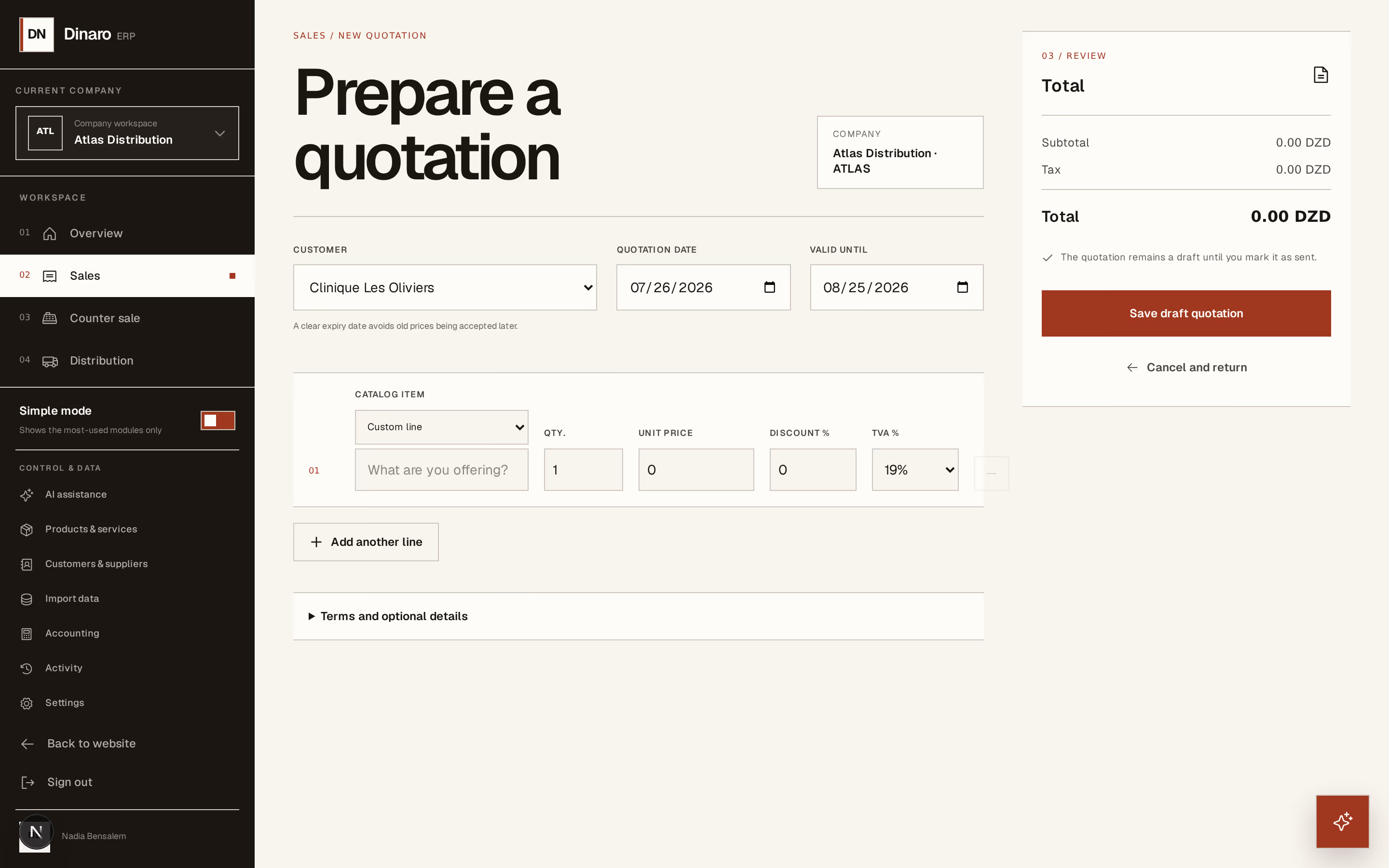
What to look at:
Customer — the same list as everywhere else. + Add a new customer if they are not in it yet.
Quotation date — when you are giving the price.
Valid until — when it stops applying. Horizon213 fills in a month ahead; change it to whatever you can actually honour. This is the field that protects you: without it, a customer can come back in March holding a January price.
Add what you are offering
The lines work exactly as they do on an invoice: pick a catalogue item and the price and tax come with it, or leave the line free and type it yourself. Prices you have agreed with this customer are applied here too.
Underneath, Commercial terms shown on the quotation is the place for the conditions the customer needs to read — payment terms, delivery lead time, what the price does not include.
Press Save draft quotation. Nothing has been sent yet.
Send it, then record what the customer said
From the quotation's own page, Mark as sent once it has gone out. That is what starts the clock; until then it is still yours.
When the answer comes back, record it honestly. The register is only useful if it reflects reality.
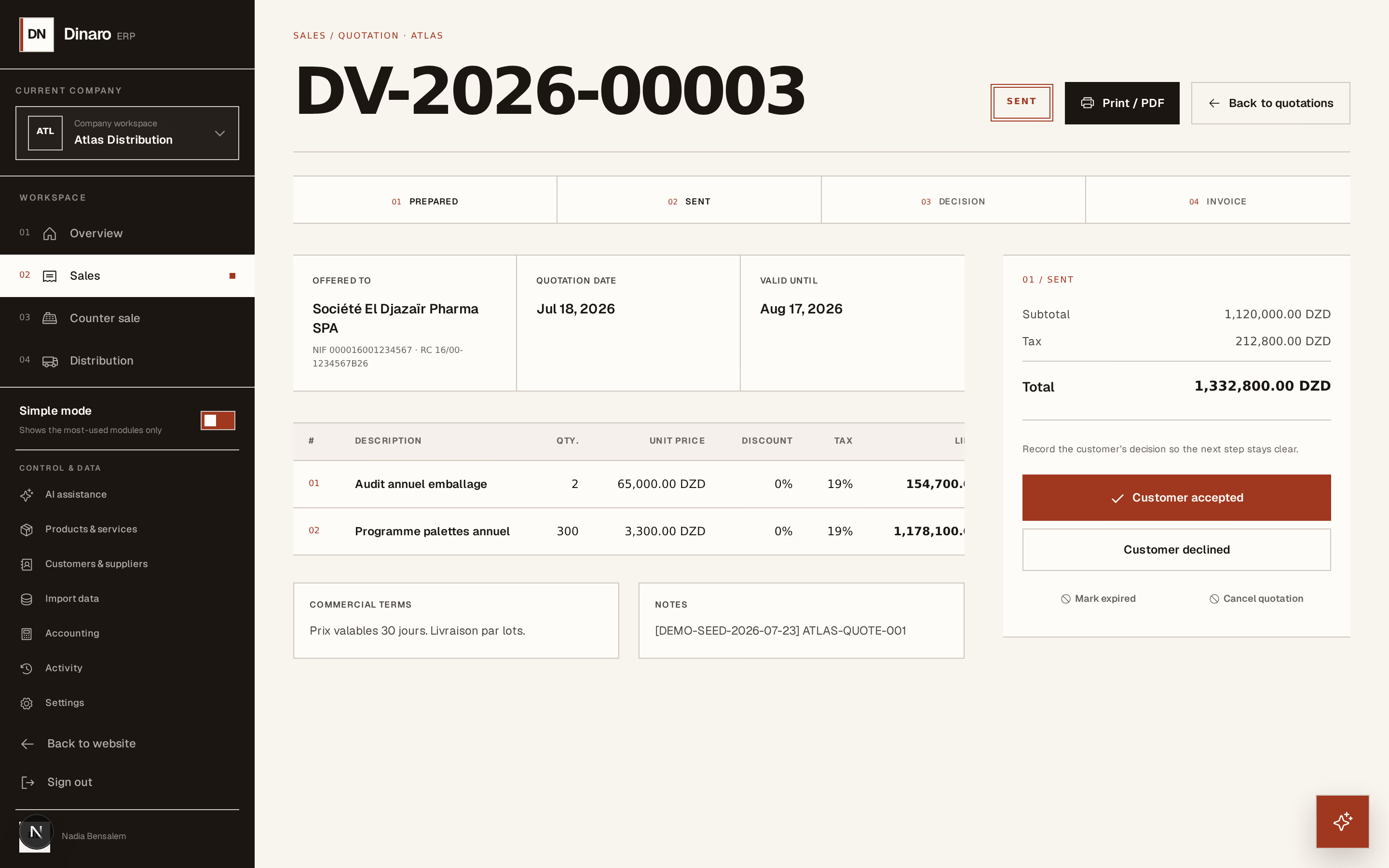
What to look at:
Customer accepted — the quotation is now ready to become an invoice.
Customer declined — closed, and still readable. A declined quotation is worth keeping: it is the price you offered and the answer you got.
Mark expired — the date passed without an answer. Send again reopens it with a fresh validity if you want to re-offer.
Turn the accepted quotation into an invoice
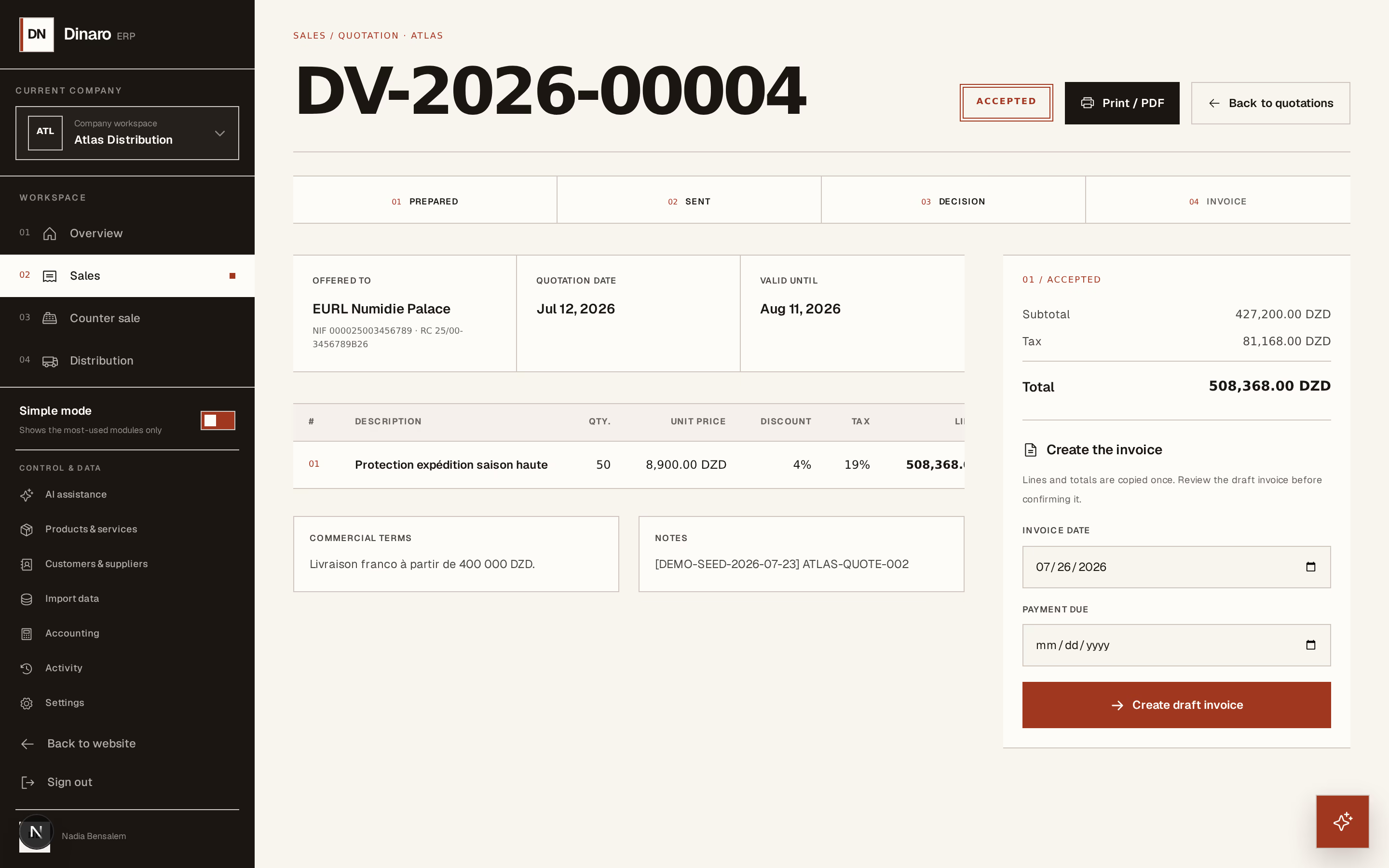
What to look at:
Invoice date — usually today, not the quotation's date.
Payment due — when you expect to be paid.
Create draft invoice copies every line across and opens the draft.
You get a draft, not a confirmed invoice: check it, then confirm it as usual. A quotation can only be converted once, so there is no way to invoice the same job twice by pressing the button again.