All guidesProjects & operations
Create a project and follow its tasks
Give a piece of work an owner, dates and a budget, then let its progress follow from the tasks underneath it.
- Steps
- 4 · About 2 min
- Who can do this
- Owner · Manager · Team member
- Needs the module
- Projects & operations
A project here is a container for work that runs longer than a day and belongs to somebody: a fit-out, an installation, a delivery contract. It holds tasks, dates and a budget, and its progress comes from the tasks rather than from anyone typing a percentage.
Open Projects
Projects in the sidebar lists what is running, who owns each one, and how far along it is.
Describe the work
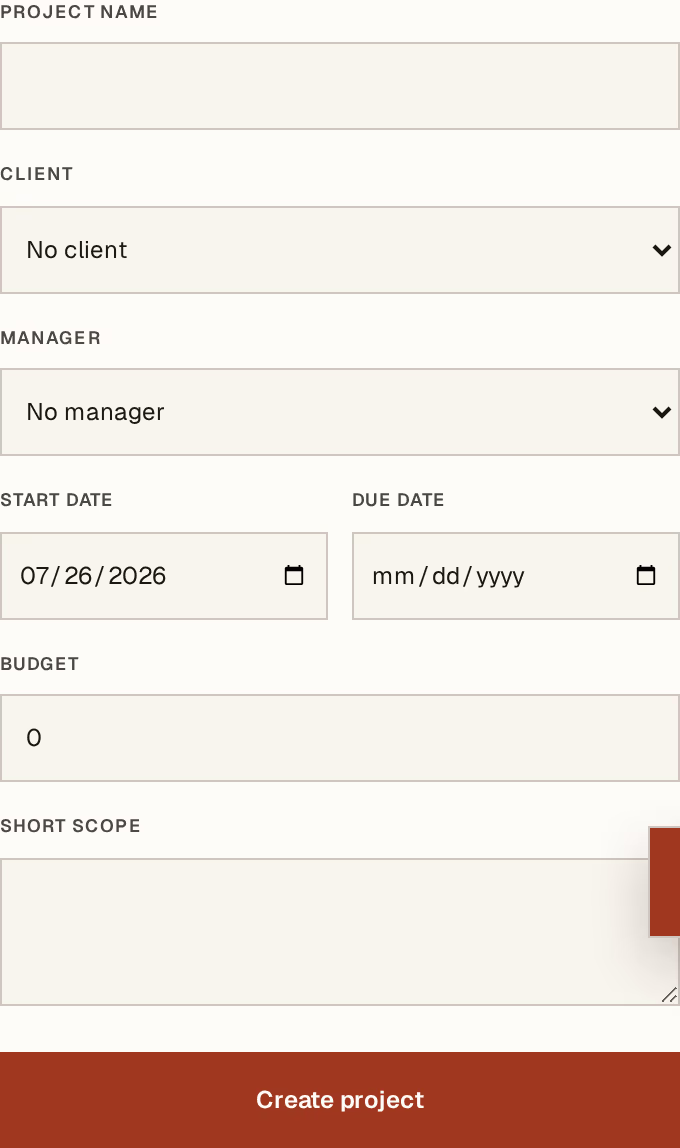
What to look at:
Project name — what your team calls it out loud.
Manager — one person from your employees. A project with no owner is a project nobody chases.
Due date — when it has to be finished. Start date sits beside it.
Budget — what it is worth, or what you have to spend on it. Leave it empty rather than guessing; an invented number is worse than none.
Client links it to a contact, and Short scope is for the sentence that stops an argument in three months about what was included.
Press Create project.
Add the tasks
Open the project. Add a task takes what needs doing, an owner, a due date and a short note.
Each task moves through To do → In progress → Blocked → Done. Blocked is worth using honestly: it is the only status that tells the manager something they can act on.
Watch progress follow
The project's progress is calculated from its tasks — finish them and it moves. Nobody sets it by hand, so it cannot drift away from what has actually been done.
Change the project's own status — Planned, Active, On hold, Completed, Cancelled — when the whole piece of work moves, not when a task does.
A project is for work with tasks and a duration. A single scheduled job — a repair, an inspection, a delivery to arrange — is a work order instead, and does not need a project around it.