All guidesProjects & operations
Raise a work order
Schedule one job — a repair, an installation, an inspection — with an owner, a date and a priority.
- Steps
- 3 · About 2 min
- Who can do this
- Owner · Manager · Team member
- Needs the module
- Projects & operations
A work order is one job with a date on it. The service call, the machine that needs looking at, the installation somebody has to drive to. It is the unit of work that does not need a project around it.
Open Operations
Operations in the sidebar lists what is scheduled, what is late, and who has it.
Describe the job
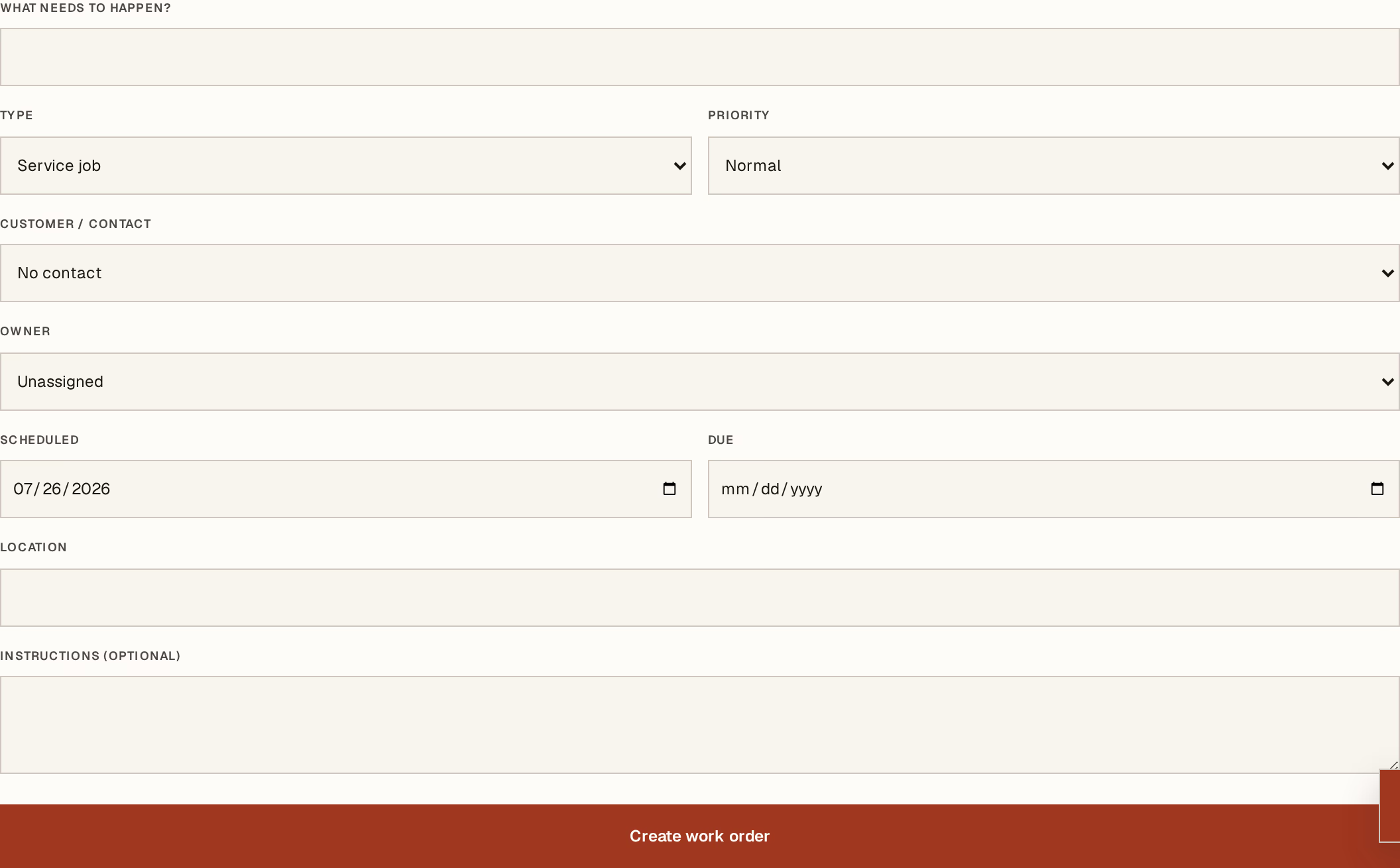
What to look at:
What needs to happen? — in plain words, as you would say it on the phone.
Type — General, Service job, Maintenance, Delivery, Production, or Inspection. This is what lets you look at all the maintenance in a month without reading every line.
Priority — Low, Normal, High, Urgent. Use Urgent sparingly; a list where everything is urgent tells nobody anything.
Scheduled — the day it is meant to happen. Due beside it is the day it stops being acceptable.
Customer, Owner, Location and Instructions fill in the rest. The instructions field is what the person actually doing the job will read, so write it for them.
Press Create work order.
Move it along
Each order carries its own status: Planned → Ready → In progress → Blocked → Completed, or Cancelled. Update it from the register as the day goes.
Blocked earns its place here too — a job waiting on a part is not a job somebody forgot, and the two should not look the same in the list.
Work orders schedule and record work. They do not price it: if the customer is being charged, that is an invoice, raised separately. The two are deliberately not linked, so a job can be rescheduled without touching what was agreed.