All guidesStart here
Switch language
Move the whole workspace between Arabic, French and English — and know where the control actually is.
- Steps
- 3 · About 2 min
- Who can do this
- Owner · Manager · Accountant · Team member · Read only
Horizon213 runs in Arabic, French and English, and the choice is per person and per moment — not a company setting somebody has to change for you.
The three buttons
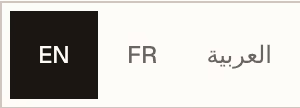
What to look at:
العربية — switches the whole interface to Arabic and flips the layout right-to-left. Menus, tables and forms all mirror; numbers and amounts do not.
FR — French.
EN — English.
Whichever you are in is the one filled in dark. Pressing another keeps you on the same screen with the same data — you do not lose your place.
Where the control is
On a phone or a narrow window, it is in the bar across the top. That bar is hidden on a wide screen, so on a desktop there is no visible language control inside the workspace.
On a wide screen, change the language in the address bar instead: every page
begins with the language, so /en/erp/sales becomes /ar/erp/sales. It is the
same switch — the buttons above only write that prefix for you.
What follows the language
The interface, the menus, the messages, and the documents you print. An invoice printed while reading in Arabic comes out in Arabic with a right-to-left layout; the same invoice printed in French comes out in French. Nothing about the document changes except the language it speaks — printing covers that.
What does not change: your data. Customer names, product names and anything anybody typed stay exactly as they were entered. Horizon213 translates its own words, not yours.
On a shared machine everyone can work in their own language without changing anything for anyone else. Language lives in the page you are looking at, not in the company, and not in the account.