All guidesSell
Print or send a document as PDF
Print an invoice, quotation, delivery note, or credit note — and control what appears on the paper.
- Steps
- 4 · About 4 min
- Who can do this
- Owner · Manager · Accountant · Team member
- Needs the module
- Sell
Before you start
Every document your customer sees comes off the same page. An invoice, a quotation, a delivery note, a credit note, a purchase order — one layout, one print screen, and the same two buttons. Learn it once.
Open the printable copy
Open the document and choose its print view. What loads is not a preview of something else — it is the document, laid out on A4, exactly as it will come out of the printer.
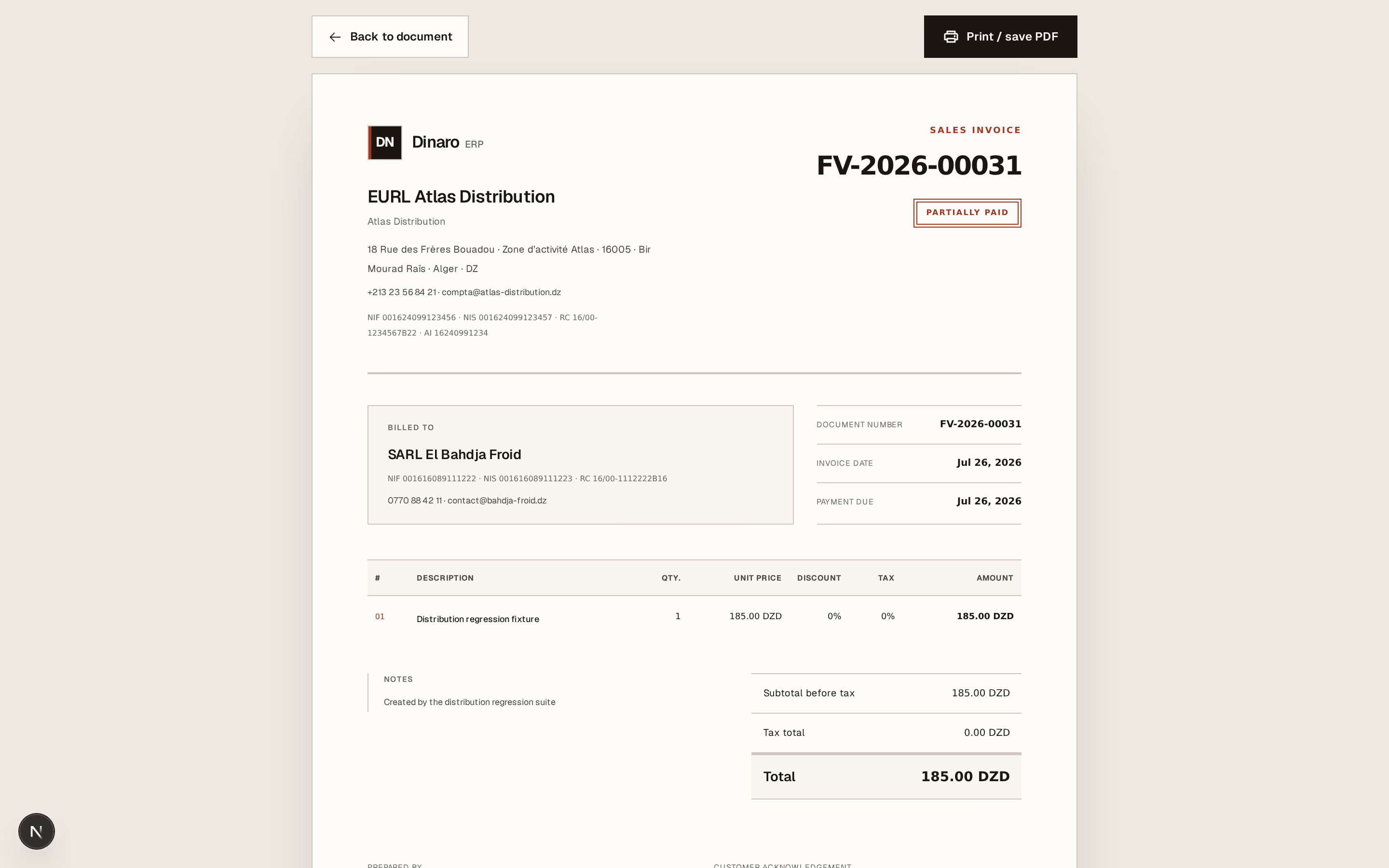
What to look at:
Back to document — leaves the print view and returns to where you were working. Nothing is saved or changed by looking at this page.
Print / save PDF — opens your browser's print dialog. To send the document instead of printing it, change the destination in that dialog to Save as PDF; you get a file you can attach to an email or send on WhatsApp. There is no separate export button because there does not need to be one.
The status stamp — what this document is right now: draft, confirmed, partly paid, paid, cancelled. It prints. Hand a customer an invoice stamped partly paid and the conversation starts in the right place.
Where the details come from
Nothing on this sheet is typed on this screen. Every part of it is pulled from something you already maintain, which is why it is worth getting those right once rather than fixing documents one at a time.

What to look at:
Billed to — the contact record: legal name, address, and the tax identifiers. If a customer's NIF is wrong on the paper, it is wrong on their record; fix it there and every future document is right.
The document block — number, date, and payment due. The number was assigned when the document was confirmed and never changes.
Your own name, address and identifiers across the top — NIF, NIS, RC, AI — come from your company identity. They are what makes the document a legal one in Algeria, and a document missing them is worth nothing to the customer's accountant.
The foot of the page
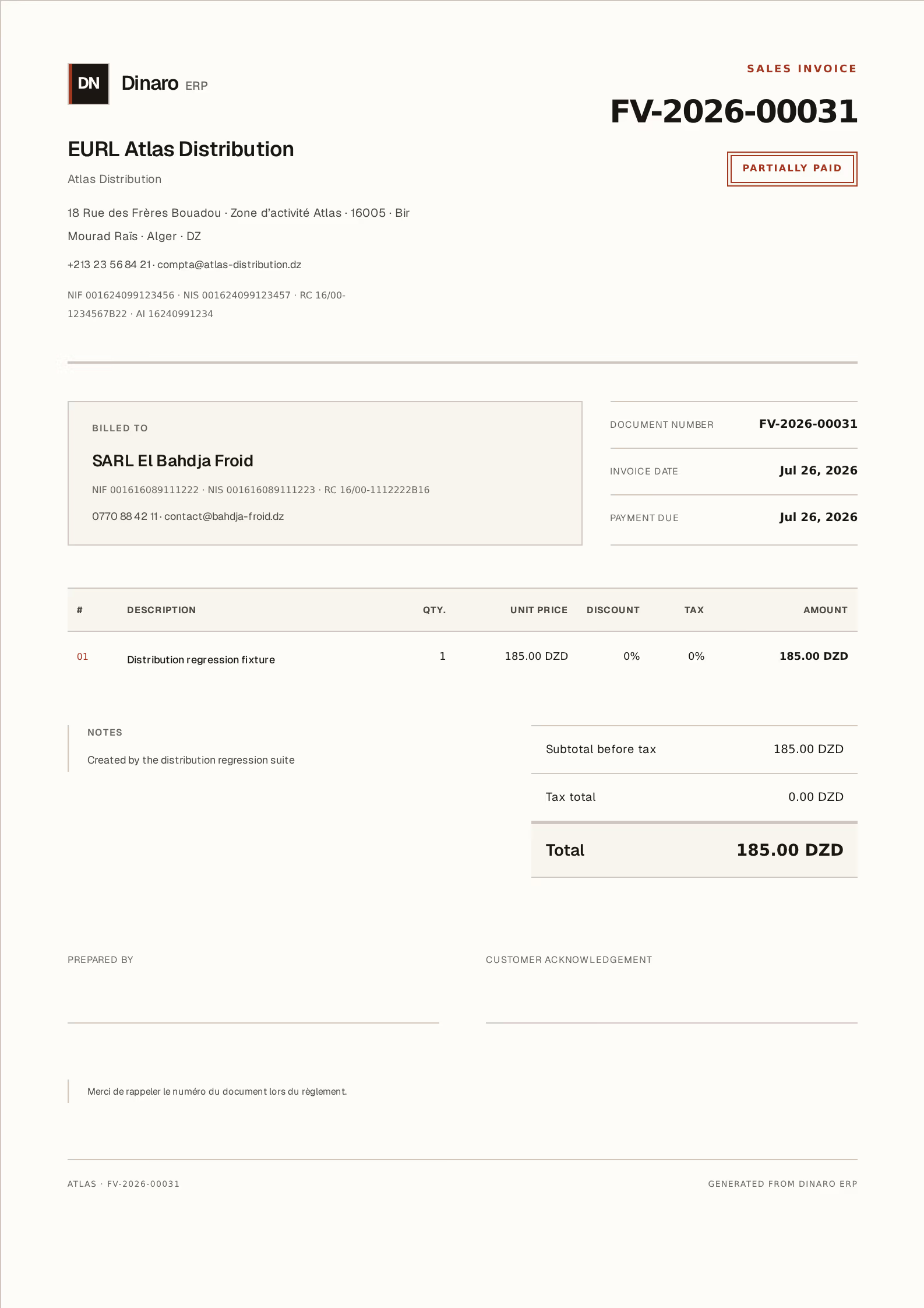
What to look at:
Totals — subtotal before tax, tax, and the total. Tax appears per line in the table above, so a document mixing 19% and 9% lines adds up correctly and shows how.
Signature lines — prepared by and customer acknowledgement. Blank on purpose: they are signed with a pen, and a signed delivery note is what settles an argument about whether goods arrived.
The footer strip — your company code, the document number again, and where it came from. If a page is separated from the rest, this is what identifies it.
The short note above the strip is your document footer, set once in company settings — payment terms, bank details, a thank-you. It prints on everything.
Printing in Arabic, French, or English
The document prints in the language you are reading the ERP in. Switch language, then print, and you get the same document with Arabic labels and a right-to-left layout — the numbers, the totals, and the identifiers are untouched.
This is per-print, not a setting. The same invoice can go to one customer in French and to another in Arabic without changing anything.
Printing does not confirm, send, or record anything. A draft prints as a draft and stamps itself as one. If you meant to issue the document, confirm it first — otherwise you have handed over a piece of paper with a number that is not yet real.
Next, you might want to
- Fill in your company's legal and fiscal identityEnter the identifiers that print on every document, and set the language, timezone and tax regime the company works under.
- Write a quotation and turn it into an invoiceGive a customer a price that holds until a date, then convert the accepted one without retyping it.
- Record a delivery against an invoiceRecord the goods that physically leave, in full or a part at a time, and move stock with them.