All guidesBring your data in
Import your valued opening stock
Tell the ERP what is on the shelf, and what it cost you, on the day it takes over.
- Steps
- 3 · About 3 min
- Who can do this
- Owner · Manager
- Needs the module
- Bring your data in
Before you start
Your catalogue says what you sell. Opening stock says what you have — how many, in which warehouse, and what it cost you — on the day this ERP takes over from whatever you were using before.
This is a one-time move per product, and the screen is built so you cannot do it twice. It only offers products with no stock history at all. The moment a product has moved — sold, received, adjusted — it is out of scope here, and the right tool becomes a stock movement.
Count before you import
The file is the easy part. The numbers in it come from a physical count, and the count is the work.
Pick a date, count on it, and try not to trade in the middle. If you must keep selling while you count, count a warehouse at a time and write down what leaves it after you counted it — because the figure you import is what was there on the opening date, not what is there when you finally get round to uploading.
Fill in the template and post it
System, then Data transfer, then the section headed Valued opening stock.
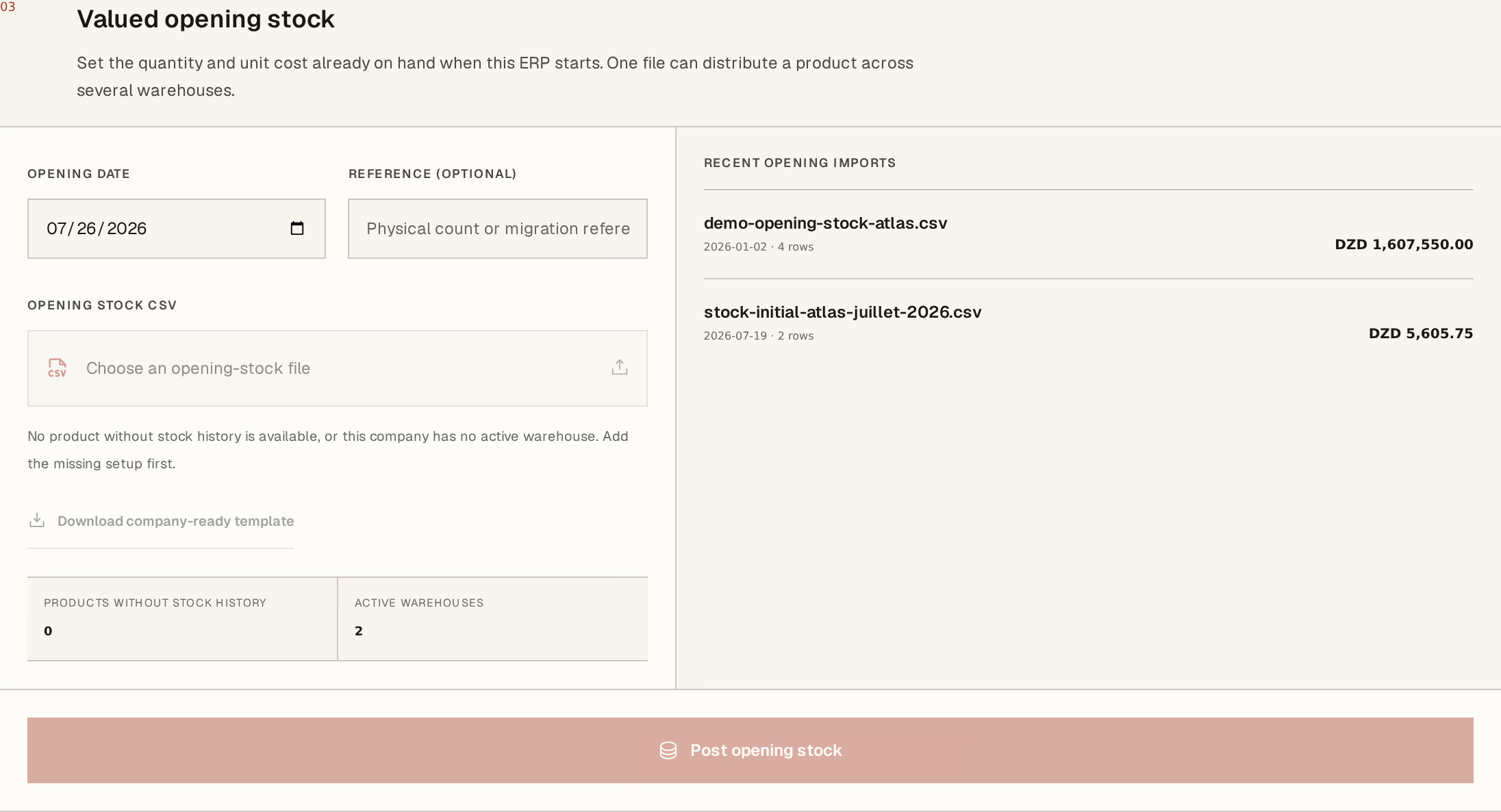
What to look at:
Opening date — the day your count is true. It is also the accounting date of the entry, so it has to fall in an open period; a date inside a closed one is refused outright.
Reference (optional) — your count sheet number, or whatever you call the migration. Worth filling: in a year this is what tells you where these quantities came from.
Download company-ready template — not a generic file. It already carries your products and your warehouse codes, so the two columns people usually get wrong are filled in for you.
Post opening stock — one button, and all or nothing.
The columns you fill are Quantity and Unit cost, per SKU and warehouse code. One product can appear on several rows to spread it across several warehouses; the same product and warehouse twice is refused, because the ERP will not guess whether you meant to add them up or replace one with the other.
Unit cost is what it cost you, not what you sell it for. It becomes the opening point of the moving average, so a selling price entered here inflates the value of your stock and understates every margin you make afterwards.
What it did
Every line lands as stock in its warehouse, and the whole file posts one accounting entry putting your inventory on the books at what you say it is worth. The panel on the right lists what you have already imported, with its total — which is the quickest check that you imported the file you meant to.
From here the products behave normally: they sell, they get received, they get adjusted, and their average cost moves from the point you just set.
The import is all or nothing. If row 40 has a bad unit cost, nothing at all is written — not rows 1 to 39, not the accounting entry. Fix the row and post the file again. The same holds for a file you already imported: it is recognised and refused rather than doubled.
Next, you might want to
- Import open customer and supplier balancesBring in the invoices still owed to you, and by you, on the day this ERP starts — without inventing sales that never happened here.
- What your stock is worthHorizon213 values stock at a moving weighted average, per company. This is why the figure changes when you buy, and not when you sell.
- Record a stock movementAdjust, issue or transfer stock by hand, when goods move for a reason no document covers.