All guidesBuy
Raise a purchase order
Tell a supplier what you want, at what price, so what arrives can be checked against what you agreed.
- Steps
- 4 · About 2 min
- Who can do this
- Owner · Manager · Team member
- Needs the module
- Buy
Before you start
A purchase order is the agreement you will later check the delivery and the invoice against. Without one, goods arrive and you are trusting the supplier's paperwork about what you ordered and what it cost.
Like a sales invoice, it starts as a draft that commits nothing, and becomes real when you confirm it.
Start the order
Purchases in the sidebar, then New purchase order.
If the supplier is not in the list, add them under Customers & suppliers first — a contact marked Supplier or Customer & supplier appears here; one marked Customer only does not.
Choose the supplier and the dates
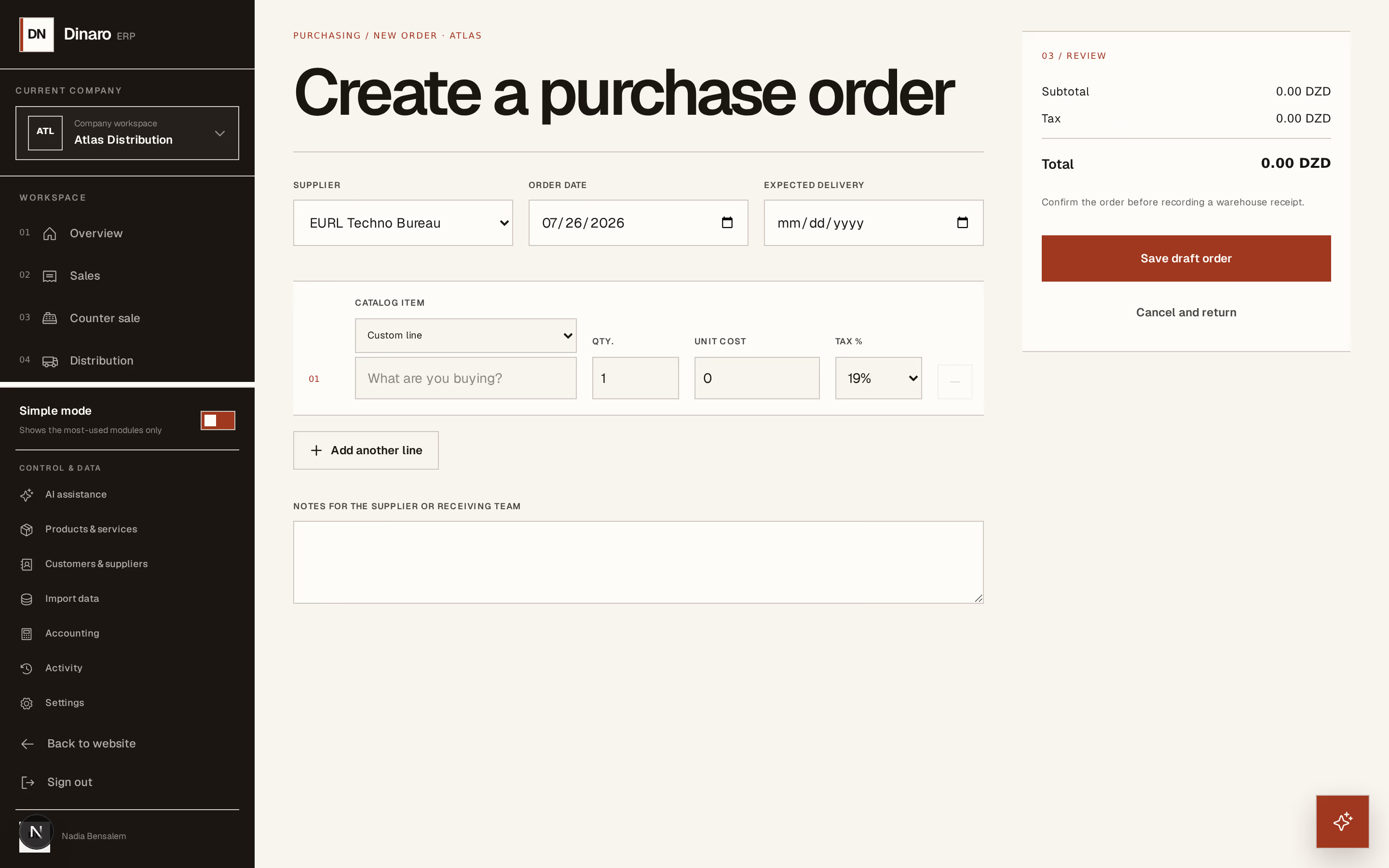
What to look at:
Supplier — who you are buying from.
Order date — when you are placing it.
Expected delivery — when they said it would arrive. This is what makes a late order visible later, so put what they promised rather than what you hope.
List what you are ordering
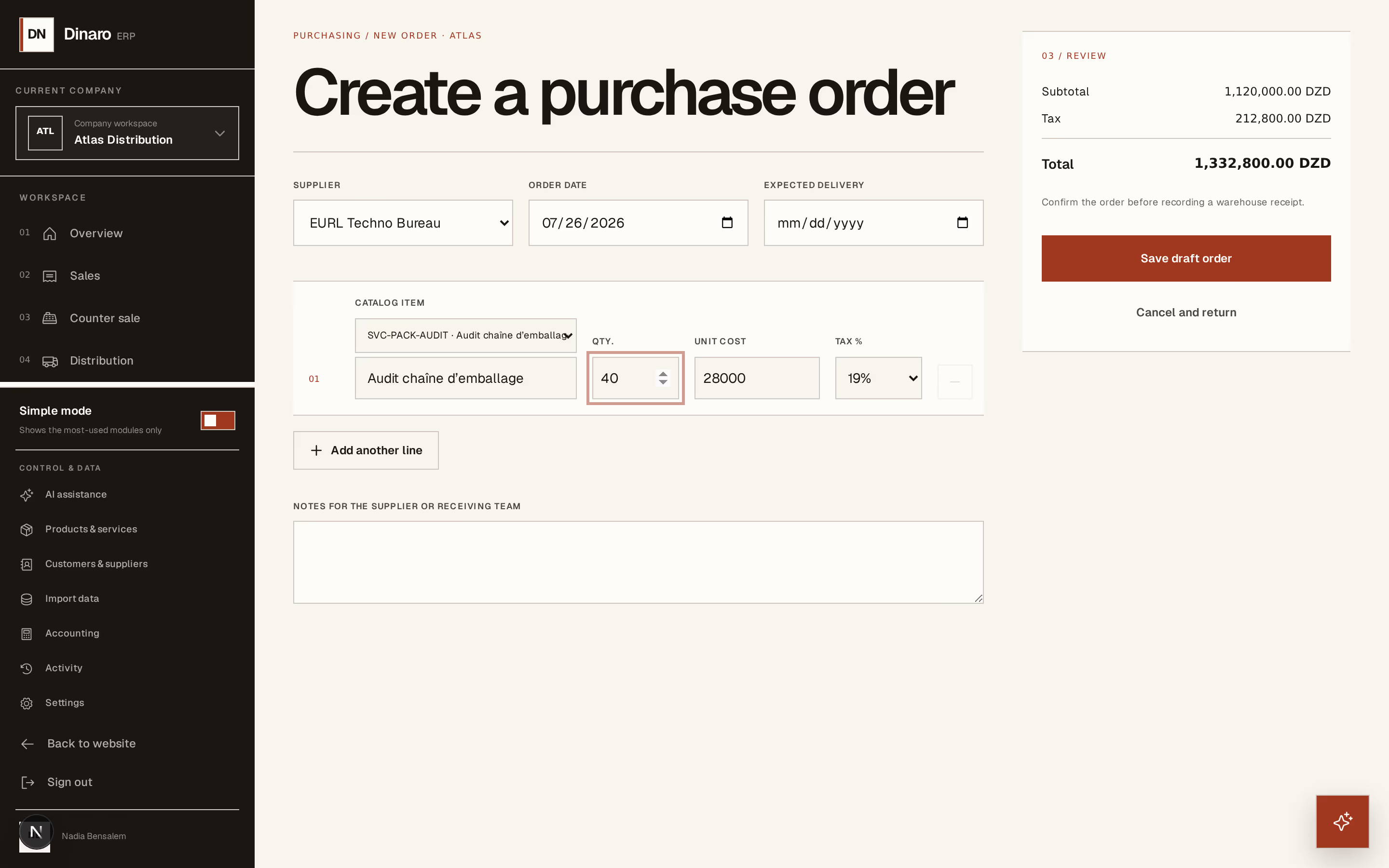
What to look at:
Catalogue item — pick from your catalogue and the description and tax come with it. Leave it on Custom line for something you do not stock, and type the description beside it.
Qty. — how many you are ordering.
Unit cost — what you are paying, which is not the price you sell at. This is the number that becomes your stock value when the goods arrive.
Add another line for the next item. Notes for the supplier or receiving team is for anything either end needs to read.
Press Save draft order.
Confirm it
On the order's own page, Confirm order. That turns it into a real commitment, gives it a number, and makes the receipt form available.
Nothing has reached stock or your accounts yet — ordering is not buying. Stock moves when the goods arrive, and money is owed when the supplier's invoice is posted. Those are the next two steps: receive the goods, then match the invoice.
Buying something with no stock in it — rent, electricity, a repair, a professional fee — does not need an order at all. Use Record supplier invoice on the Purchases screen instead, which posts the expense directly.